Map Builder supports editing for point, line, and polygon layers. The editing experience is built around the reality of GIS work: analysts are not only viewing data, they are creating, correcting, extending, and refining it.
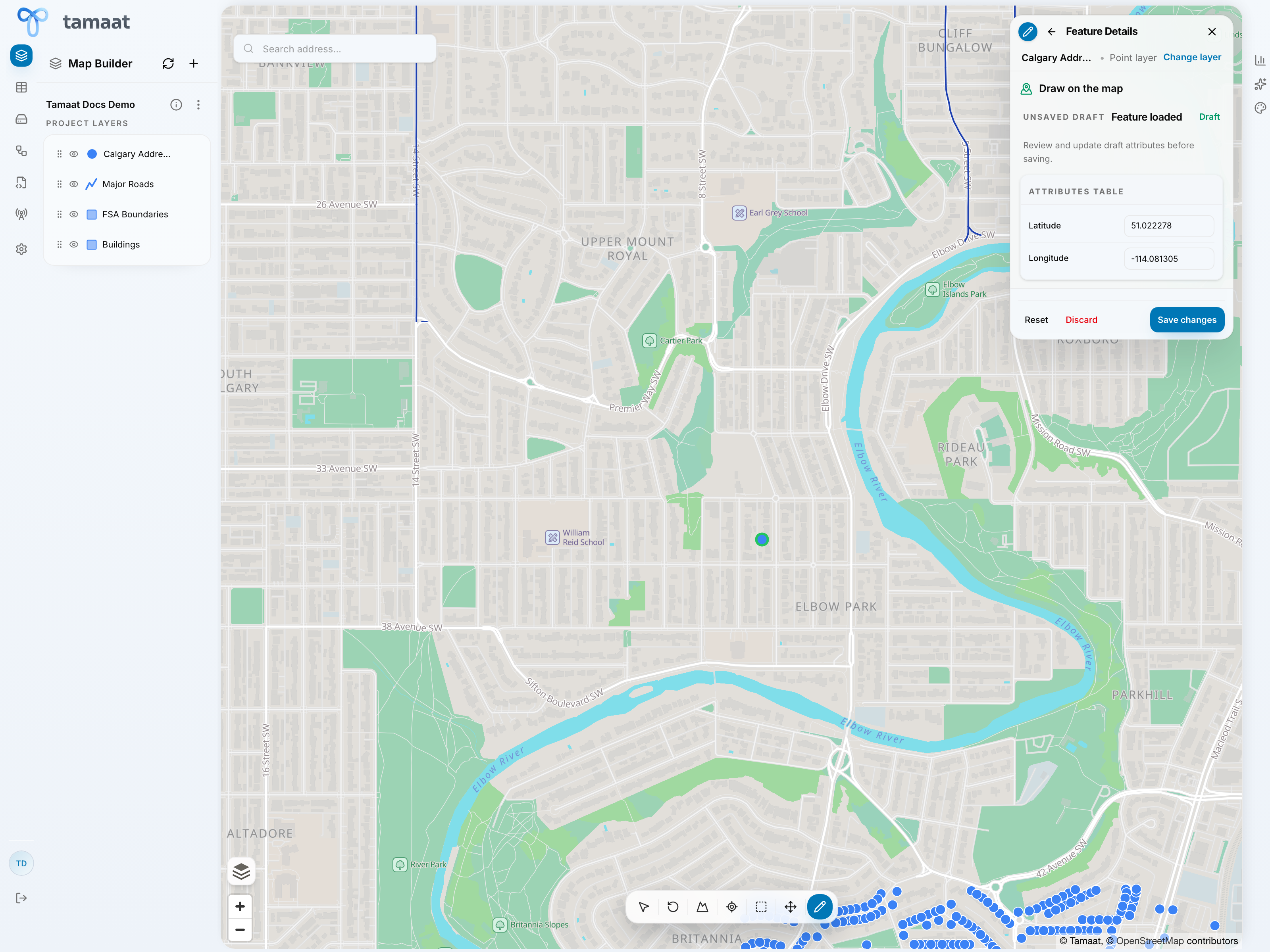 Point feature draft in the editor
Core edit actions
Users can:
- create new features
- edit existing features
- duplicate features
- delete features
The editing flow always starts the same way:
- open Edit Layer from the map toolbar
- choose the editable layer you want to work in
- choose the operation you need
- complete the geometry step on the map
- review the feature draft or selected feature details before saving
Use this section for geometry-specific editing
Why duplication matters
Duplicate Feature is especially useful when a new feature should inherit most of the attributes of a nearby feature. Instead of re-entering the same metadata again, the user starts from a copied record and changes only what is different.
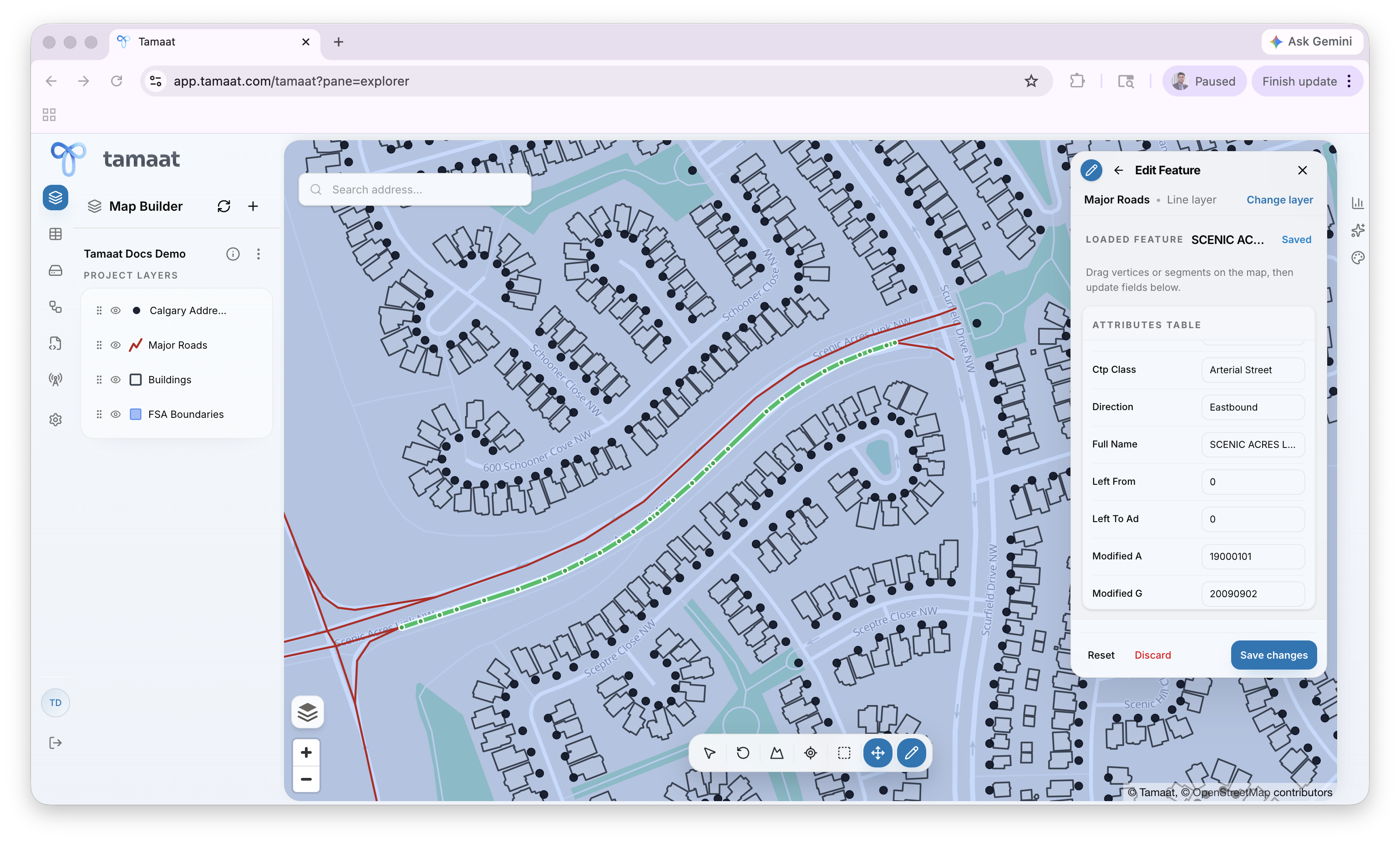 Line feature selected in the editor with loaded attributes
Intelligent snapping and border reuse
Map Builder includes intelligent editing behavior for geometry work:
- line and polygon editing can snap intelligently
- adjacent polygon creation can reuse the shared border instead of forcing a user to redraw it manually
That reduces error and keeps the geometry more consistent across neighboring features.
When to review Data Specs before editing
Before large editing sessions, confirm the layer's ID behavior and geometry-field expectations in Data Specs. This is the safest way to avoid surprises when newly created features need to follow a specific identifier strategy.