Line editing is used when the work is about routes, roads, or network-oriented features that depend on geometry sequence rather than a single location.
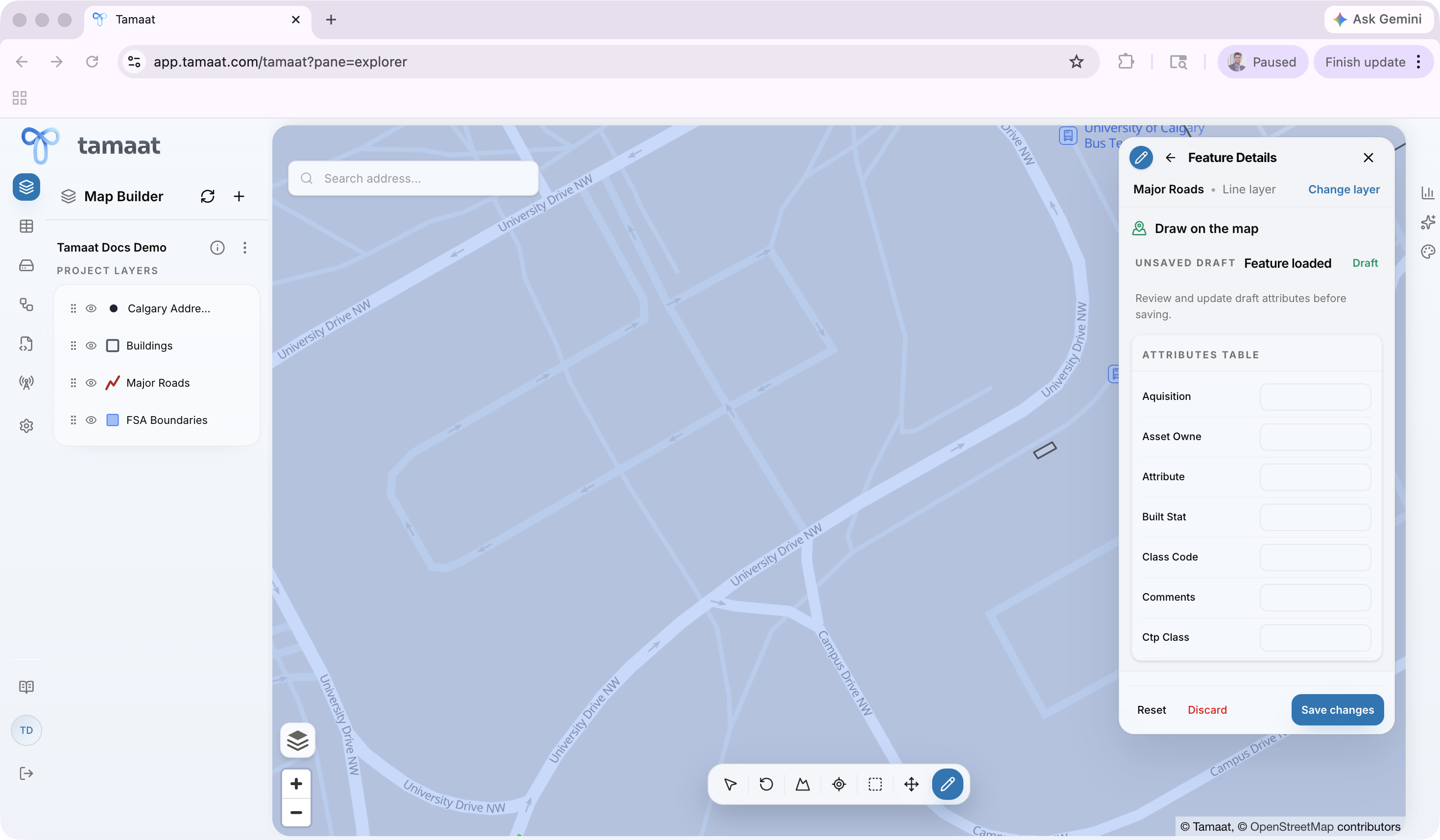 Line feature draft after drawing vertices
Create a line feature
- Open Edit Layer and choose the line layer.
- Choose Create Feature and then select Start.
- Click the map to place the first vertex.
- Continue clicking to lay out the path segment by segment, usually by extending from an existing road or tracing the street alignment you want to preserve.
- Finish the line and review the draft attributes in the feature details panel.
- Save the new line feature.
The line workflow is a geometry-first workflow. Map Builder lets the user digitize the shape first and then move directly into attribute review without leaving the editor. In practice, the cleanest edits usually start from visible network context, such as extending a road segment into a newly added street connection instead of drawing in an empty area. A strong draft review should show the operational field set for the road segment before you save, not just the geometry.
Edit an existing line
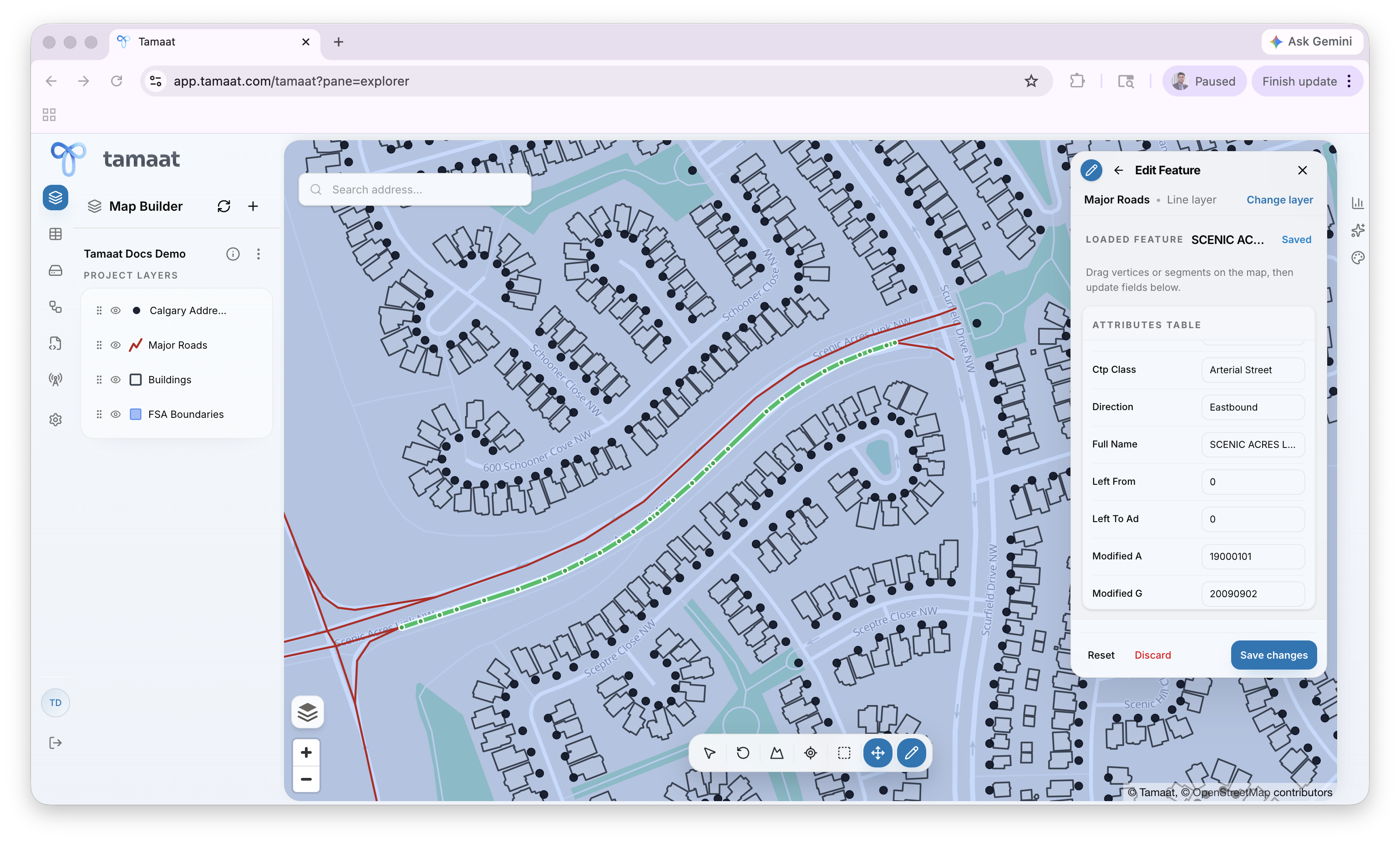 Existing road segment selected for editing with loaded attributes
- Open Edit Layer and choose the line layer.
- Choose Edit Feature.
- Click the existing line you want to change.
- Adjust the line geometry or reshape the segment as needed, especially when a road centerline needs to be extended, corrected, or aligned to a better street path.
- Review any related attributes in the feature details panel.
- Save the updated feature.
The first edit step is always explicit: Map Builder asks the user to select the source feature on the map before any geometry is changed.
What to watch for
Line work often depends on how well the feature aligns with adjacent geometry, so snapping behavior and map scale matter more here than in many point-only workflows.