You sign in once with the same account you use on the web, and your projects are waiting.
Sign in
Open the app and tap "Sign in". Use your Tamaat email and password, or "Sign in with your organization" if your workspace uses single sign-on. If your account has two-step sign-in, enter the code from your authenticator app.
The phone keeps you signed in. Your saved work is protected by the phone's own screen lock, so set one up if you haven't.
Open a project
Your projects are listed by name. If you belong to more than one workspace, pick it at the top of the list first. Tap a project and its map opens where the project was set to open, with every layer styled as on the web.
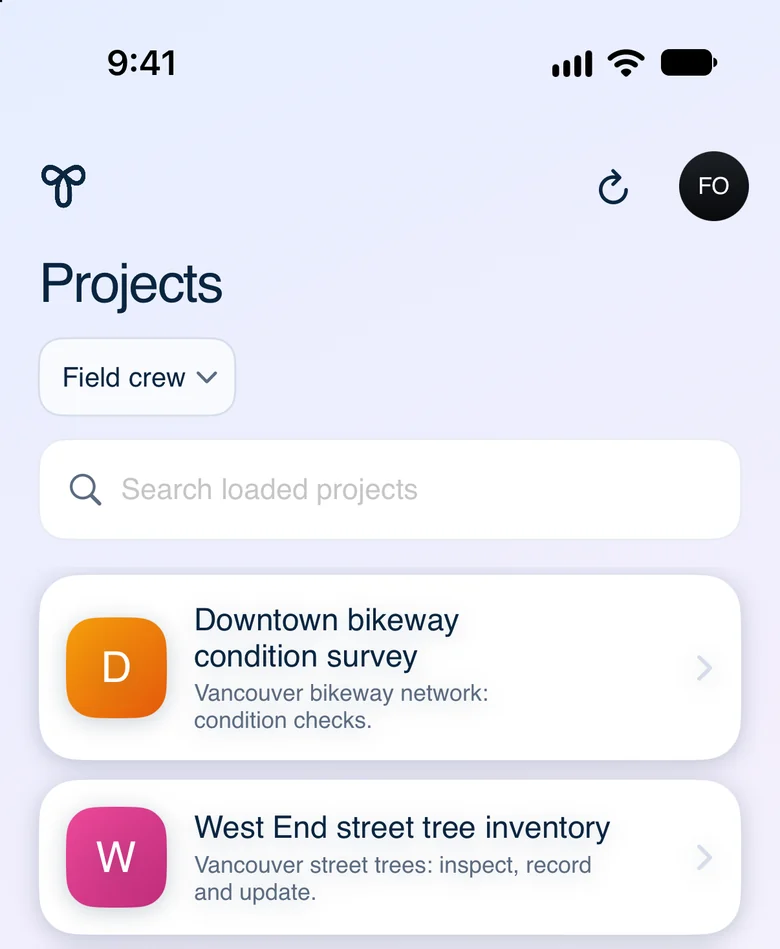 The project list in the Tamaat app
To switch projects later, tap the back chevron ‹ at the top left of the map, or the project name beside it, to return to "Projects".
The map at a glance
- Top bar: ‹ back to your projects, the project name, search, and ⋮ for everything you use less often: sync, basemap, offline areas and the trash.
- Right edge: + to add a record, zoom in and out, "Layers", and "My location".
- Bottom left: the legend.
Tap anything on the map to see what it is. The rest of these guides take each job in turn.
Demo data: City of Vancouver Open Data — street trees and bikeways.