Every change starts from the record itself: tap it on the map, and its card holds the edit and delete buttons.
Edit
Tap the record, then the edit button (the pencil) on its card. The same form you add records with opens, filled in and titled with the record's name. Change what you need; "Save" turns on once something has changed.
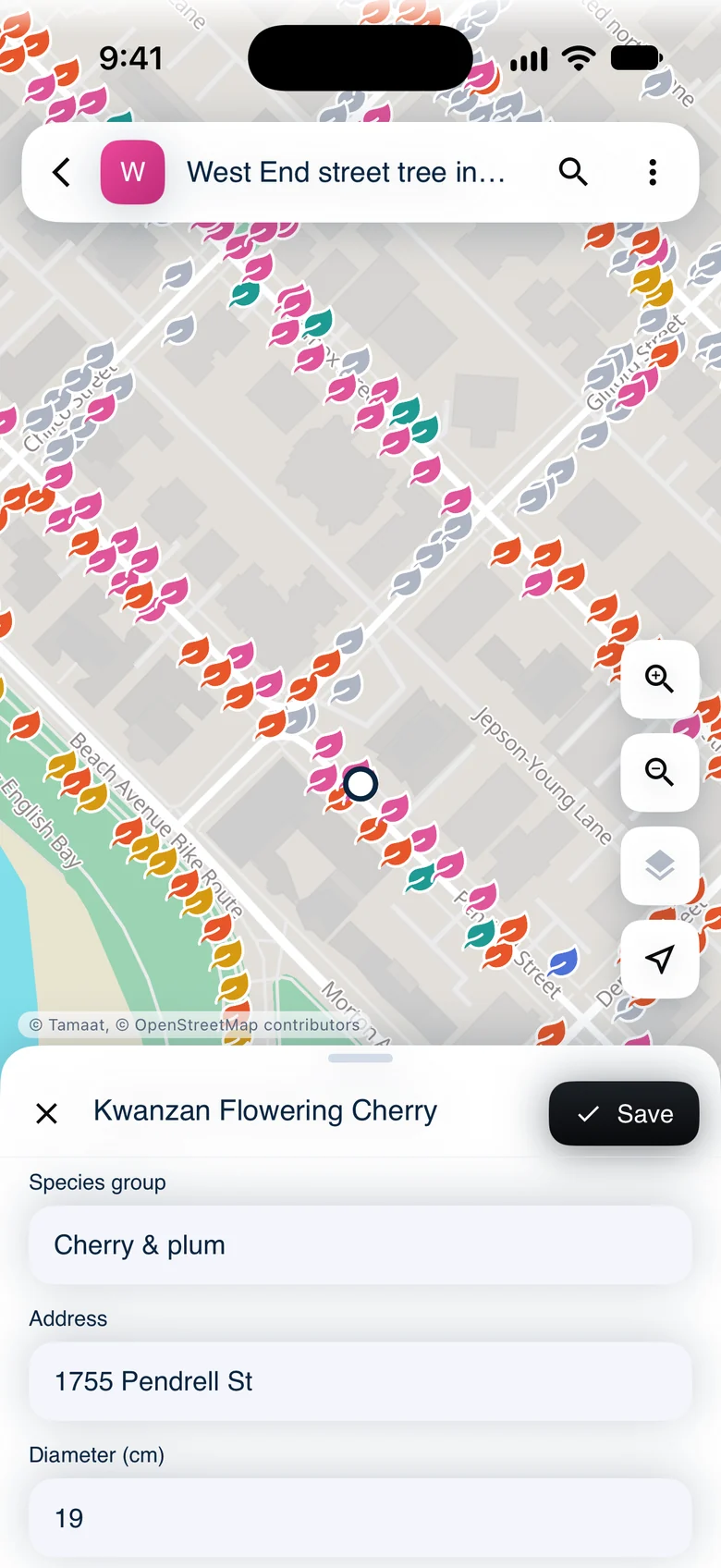 The edit form for an existing street tree
Move
In the form, tap "Move" next to "Location". The map comes back with the record under the target. Move the map to the new spot and tap "Move here", then "Save".
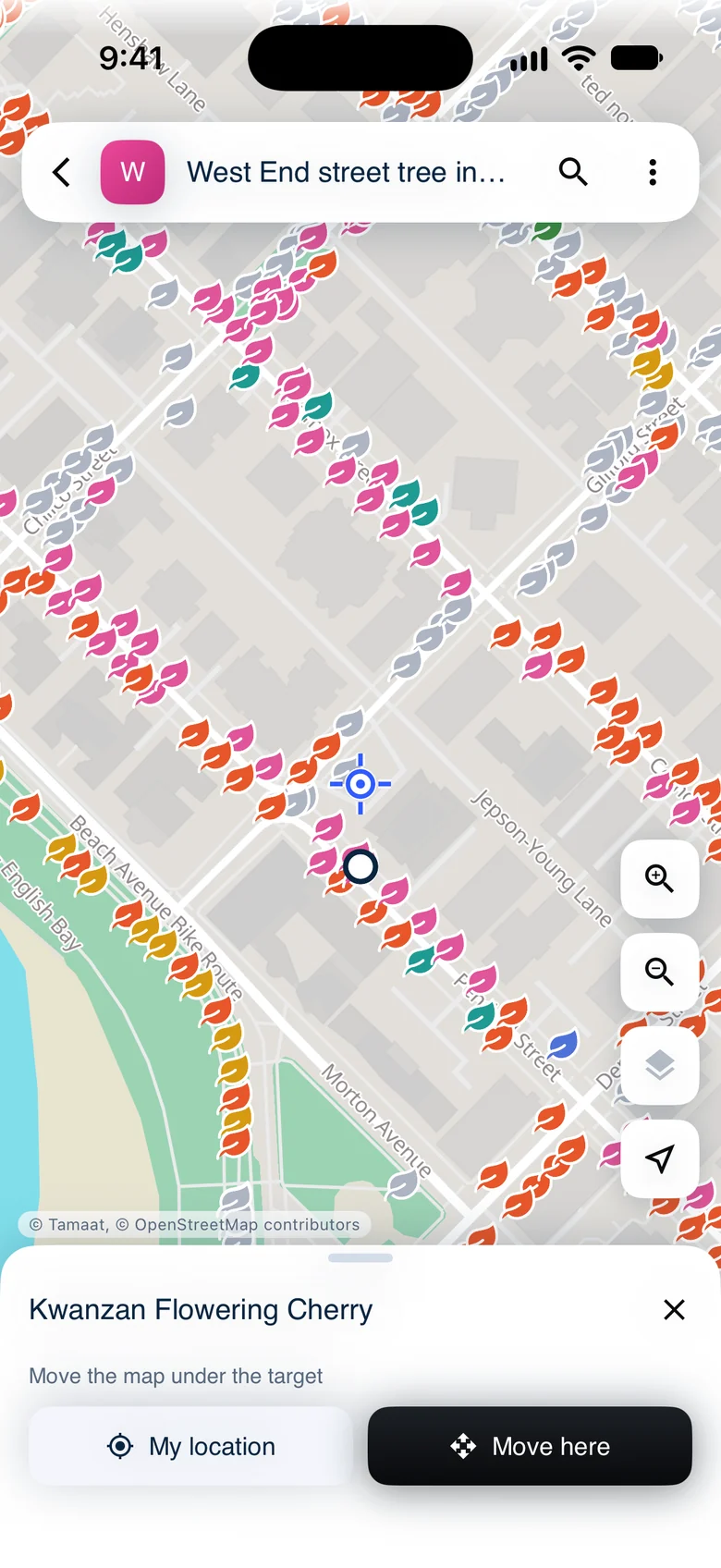 Move mode: the record under the target, with Move here
Delete
Tap the delete button (the bin) on the record's card. The record leaves the map and "Moved to trash" shows with "Undo". A deleted record stays in the trash for 14 days. To bring one back later, tap ⋮, then "Trash", and "Restore" it; the web has the same trash.
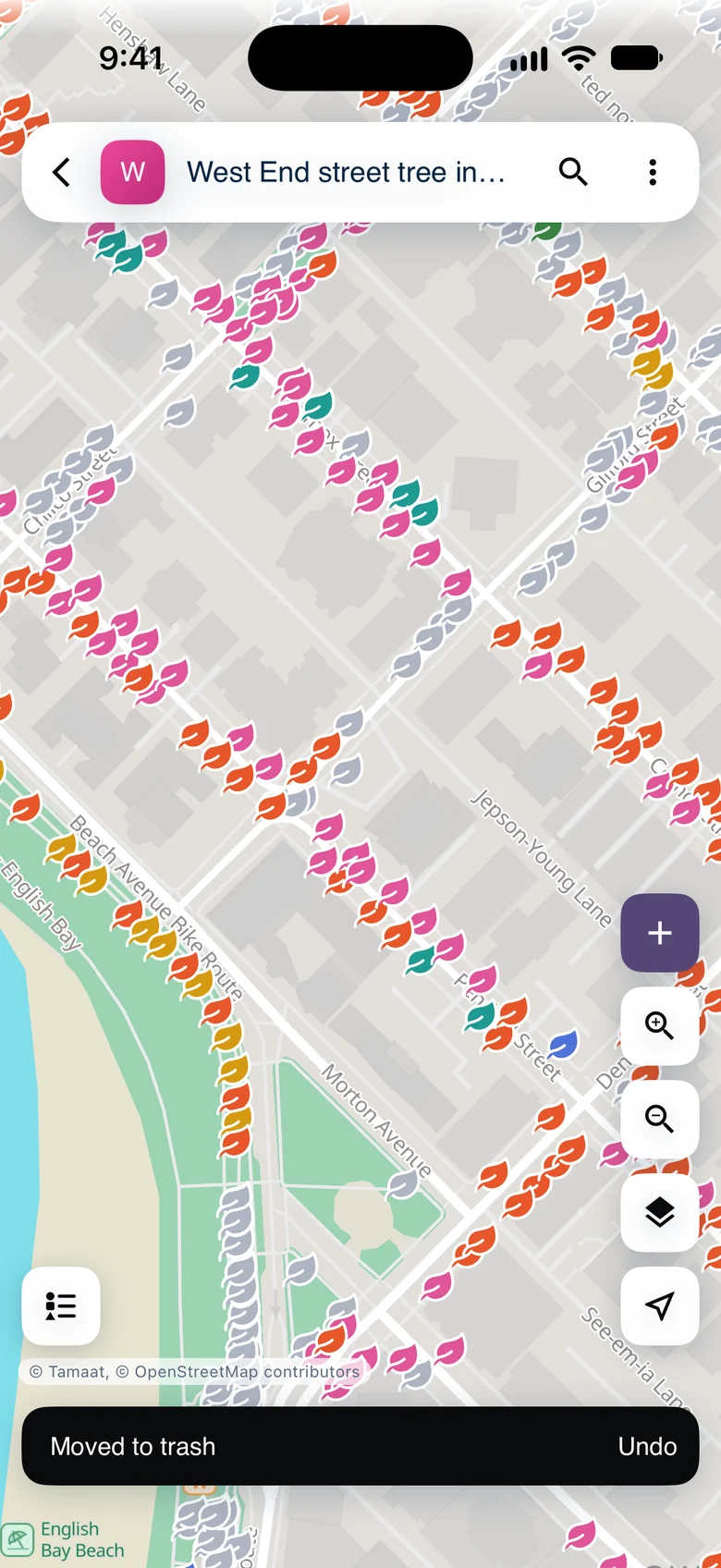 Moved to trash, with Undo
Undo any change
Every save and every delete ends with "Undo" at the bottom of the screen for a few seconds. Undo puts the record's answers and its position back.
When editing is not available
Some layers come from a source the crew can only look at. Their cards show the details without edit or delete. On a layer with many records, the card may ask you to "Zoom in to edit"; zoom in closer and the buttons come back.
Demo data: City of Vancouver Open Data — street trees.